Add Data Assets and Documents to a Project
Last updated: July 28, 2026
Users can link existing Data Assets and Documents to a Project or upload data directly in the Project workflow. Data can be added by any user listed as a Project Manager or Contributing Member within the Project.
Add Data Assets
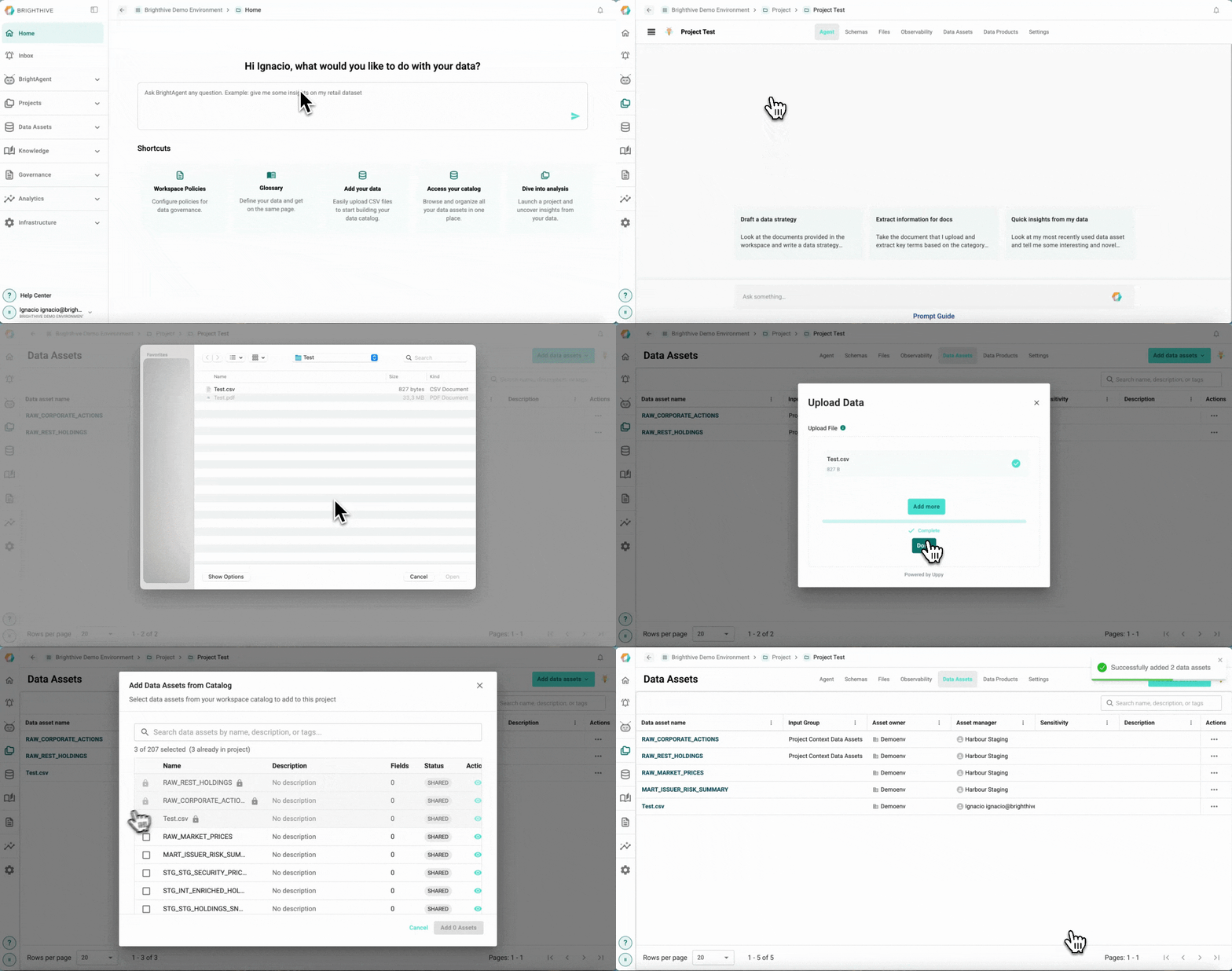
To add a Data Asset to an existing Project:
Click "Projects" on the left side of the platform
Click "Projects" on the list of options deployed
Click the name of the Project you wish to add Data
Select "Data Assets" Tab
Select "Add data assets" on the top-right corner of the platform
Choose upload source type
"Upload" will prompt users to upload a new data asset from their computer
Drop a .CSV file into the upload window, or click to browse from desktop
A preview of the Data Asset will be shown, confirm by clicking "Accept"
Either add more Data Assets to upload, or confirm the addition of the Data Asset by clicking "Upload 1 file"
"From Catalog" will prompt users to select from current assets within the Workspace's Data Asset Catalog
Select the Data Assets to add from the list displayed of available Data Assets in the Catalog, you can select as many Data Assets as desired
Confirm the addition of the Data Asset by clicking "Add Asset"
Add Documents
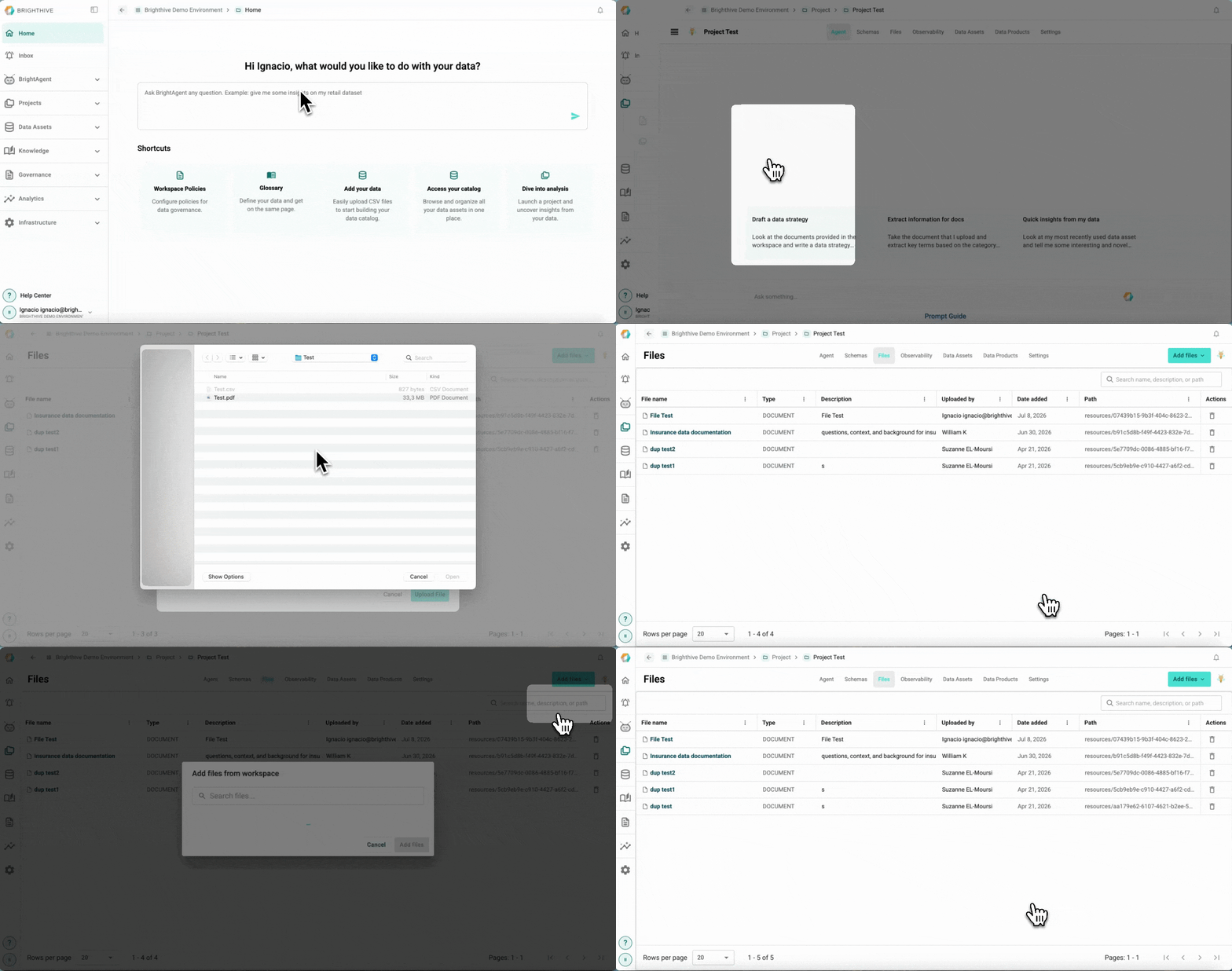
To add a Document to an existing Project:
Click "Projects" on the left side of the platform
Click "Projects" on the list of options deployed
Click the name of the Project you wish to add Data
Select "Files" Tab
Select "Add files" on the top-right corner of the platform
Choose upload source type
"Upload files" will prompt users to upload a new files from their computer
Drop the file into the upload window, or click to browse from desktop
Type the files's required information (Name and description)
Confirm the addition of the file by clicking "Upload File"
"From workspace" will prompt users to select from current files within the Workspace
Select the Files to add from the list displayed of available Files in the Workspace, you can select as many Files as desired
Confirm the addition of the File by clicking "Add file"