Add/Create Schema in a Project
Last updated: July 28, 2026
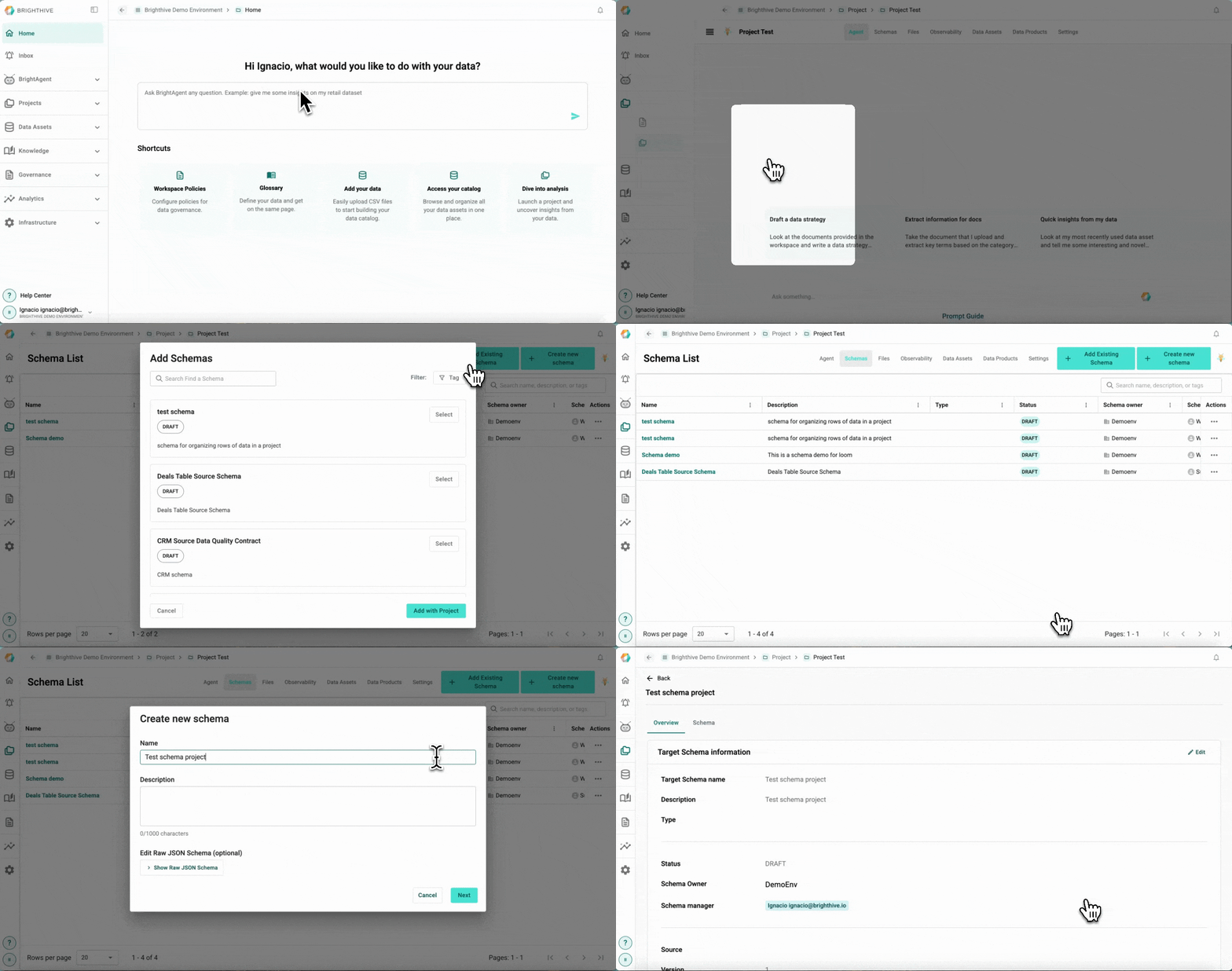
Add existing Schema to a Project
To add a Schema to an existing Project:
Click "Projects" on the left side of the platform
Click "Projects" on the list of options deployed
Click the name of the Project you wish to add a Schema
Select "Schemas" Tab
Select "Add Existing Schema" on the top-right corner of the platform
Select the Schemas you wish to add from the list of existing Schemas in the Workspace, you can select as many Schemas as desired
Confirm by clicking "Add with Project"
Create a new Schema within the Project
To create a new Schema within an existing Project:
Click "Projects" on the left side of the platform
Click "Projects" on the list of options deployed
Click the name of the Project you wish to add a Schema
Select "Schemas" Tab
Select "Create new schema" on the top-right corner of the platform
Type Schema's name and description
Click "Next"