Add new Data Asset to Catalog
Last updated: July 28, 2026
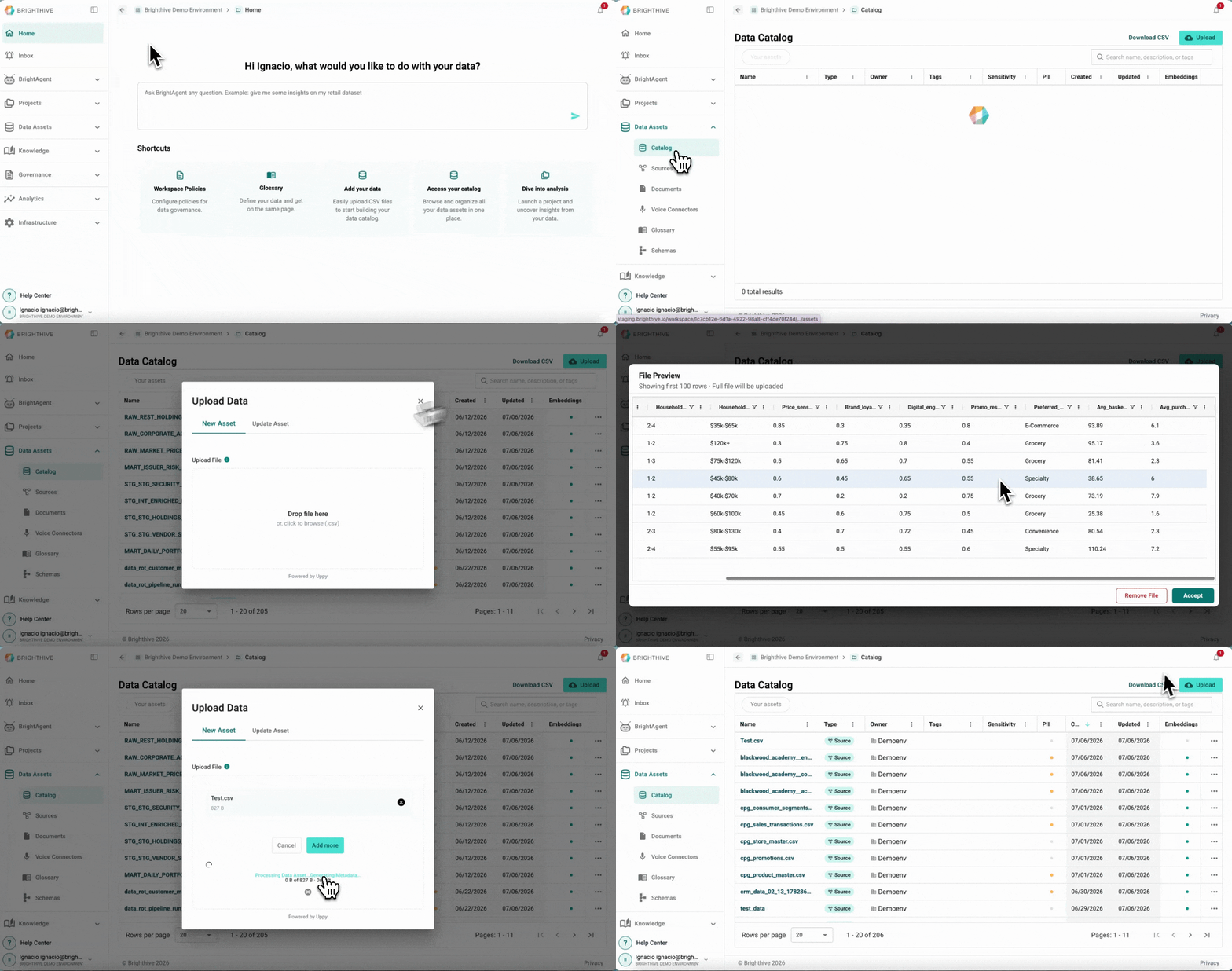
To add a new Data Assets to the Catalog in your Workspace:
Click "Data Assets"
Click "Catalog"
Click "Upload" on the top-right corner of the platform
Drop a .CSV file into the upload window, or click to browse from desktop
A preview of the Data Asset will be shown, confirm by clicking "Accept"
Either add more Data Assets to upload, or confirm the addition of the document by clicking "Upload 1 file"
Escape Characters for JSON Blobs
Default Escape Character:
The default escape character is the backslash (
\). Use this to escape special characters within your CSV fields, such as commas or quotes.
JSON Blobs:
When including JSON blobs as entries in your CSV file, use single quotes (
') to enclose the JSON data. This helps avoid parsing issues.
id,name,data
1,"Example Name",'{"description": "This is an example with a comma\, and a quote\""}'
2,"Another Name",'{"values": [1, 2, 3]}'
In this example:
The comma within the description field in the JSON blob is escaped using a backslash (
\,).The double quote within the description field in the JSON blob is escaped using a backslash (
\").The entire JSON blob is enclosed in single quotes.
Quick Tips
Commas: Escape commas within fields using a backslash (
\,).Quotes: Escape double quotes within fields using a backslash (
\").JSON: Enclose JSON blobs in single quotes (
').
By following these simple guidelines, you can ensure your CSV files are correctly formatted for data ingestion.