Edit existing Schema in the Workspace
Last updated: July 28, 2026
Once a Schema has been created, users can edit their information of their fields in the future.
Edit Schema's Information:
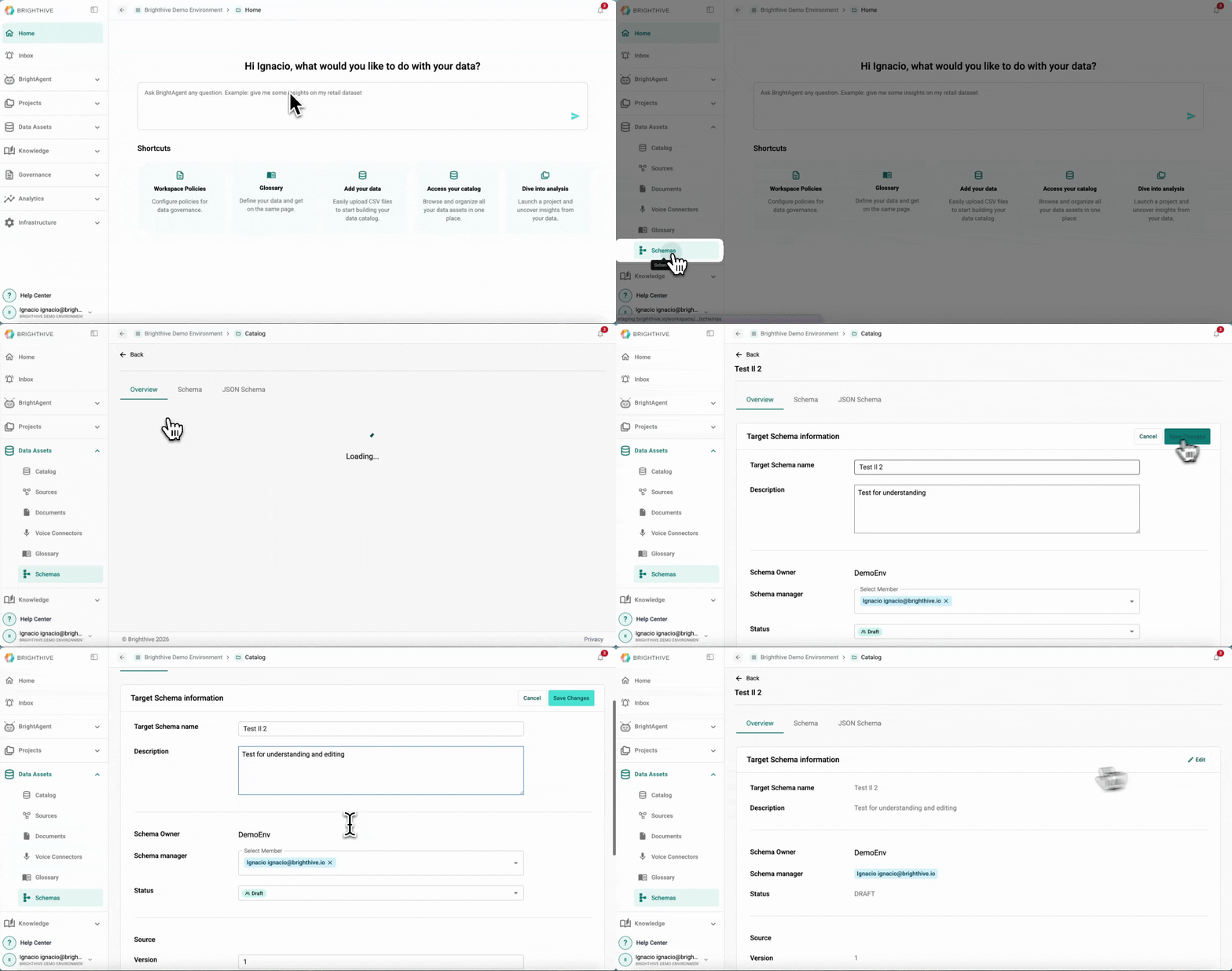
To edit an existing Schema's Information in the Workspace:
Click "Data Assets"
Click "Schemas"
Select the name of the Schema you wish to edit
Click "Edit" On the top-right corner
Modify the field you wish to edit
Confirm by clicking "Save Changes" on the top-right corner
You can edit the following information about each Schema:
Target Schema name
Description
Schema manager
Status
Version PII Types
Tags
Refresh rate
Add Schema's Fields:
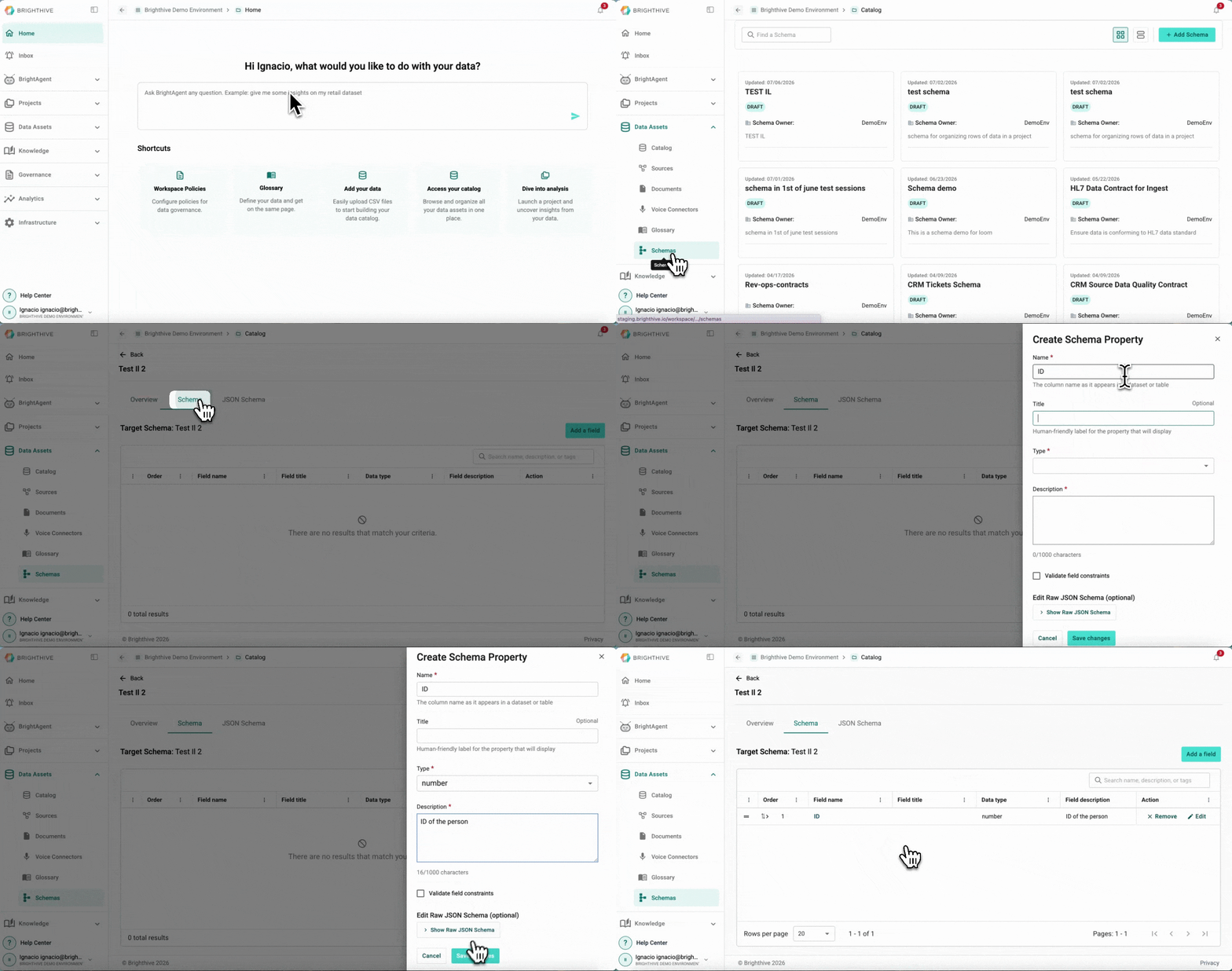
To add a new Field to Schema in the Workspace:
Click "Data Assets"
Click "Schemas"
Select the name of the Schema you wish to edit
Go to the "Schema" Tab
Click "Add a field" on the top-right corner
Add the required information of the Field (Name, Title, Type and Description)
Confirm by clicking "Save changes"
Edit Schema's Fields:
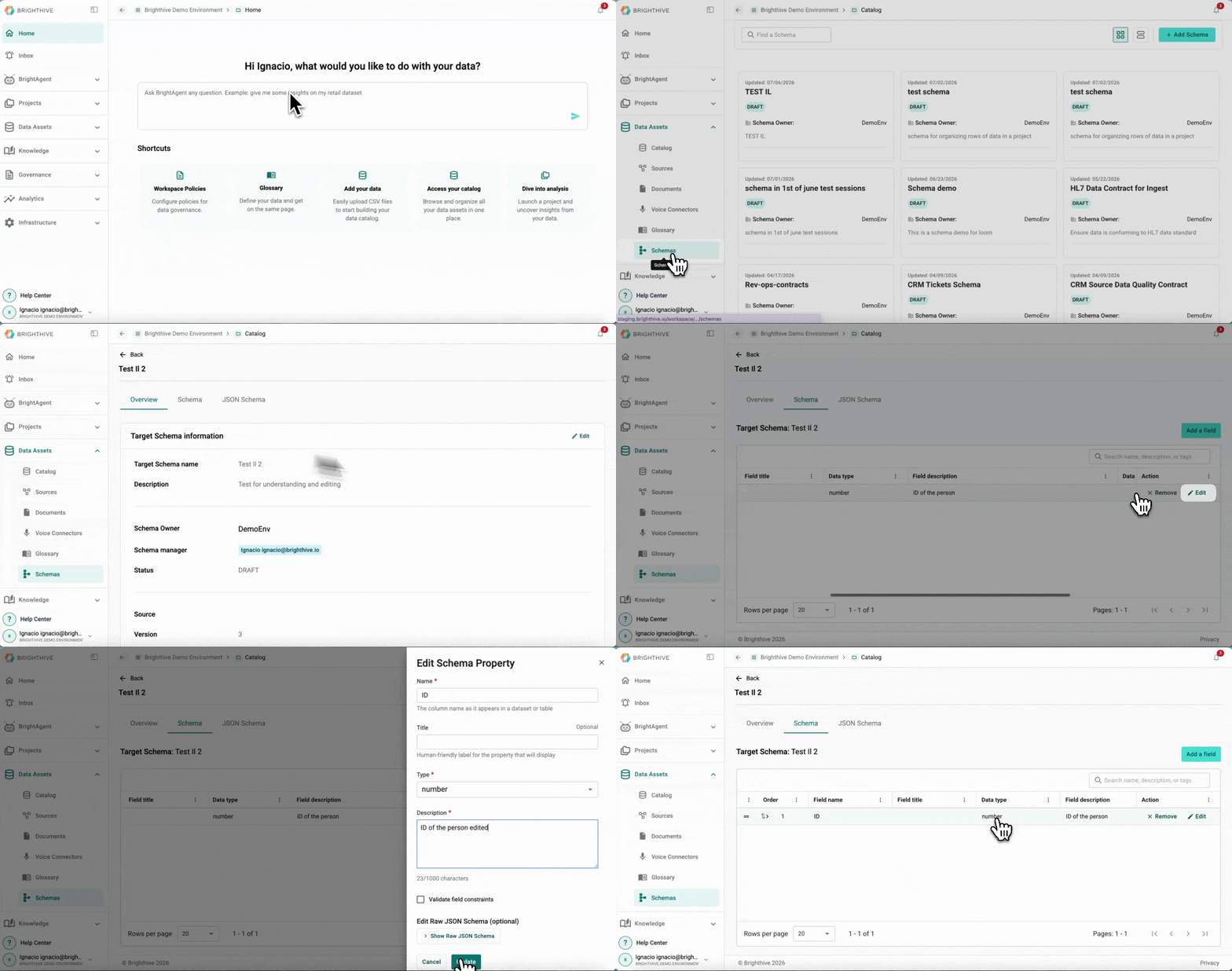
To edit an existing Schema's Field in the Workspace:
Click "Data Assets"
Click "Schemas"
Select the name of the Schema you wish to edit
Go to the "Schema" Tab
Click "Edit" on the Action column of the Field you wish to Edit
Modify what you wish to edit
Confirm by clicking "Update" on the top-right corner
You can edit the following aspect about each Schema's Field:
Name
Title
Type
Format
Description
Remove Schema's Fields:
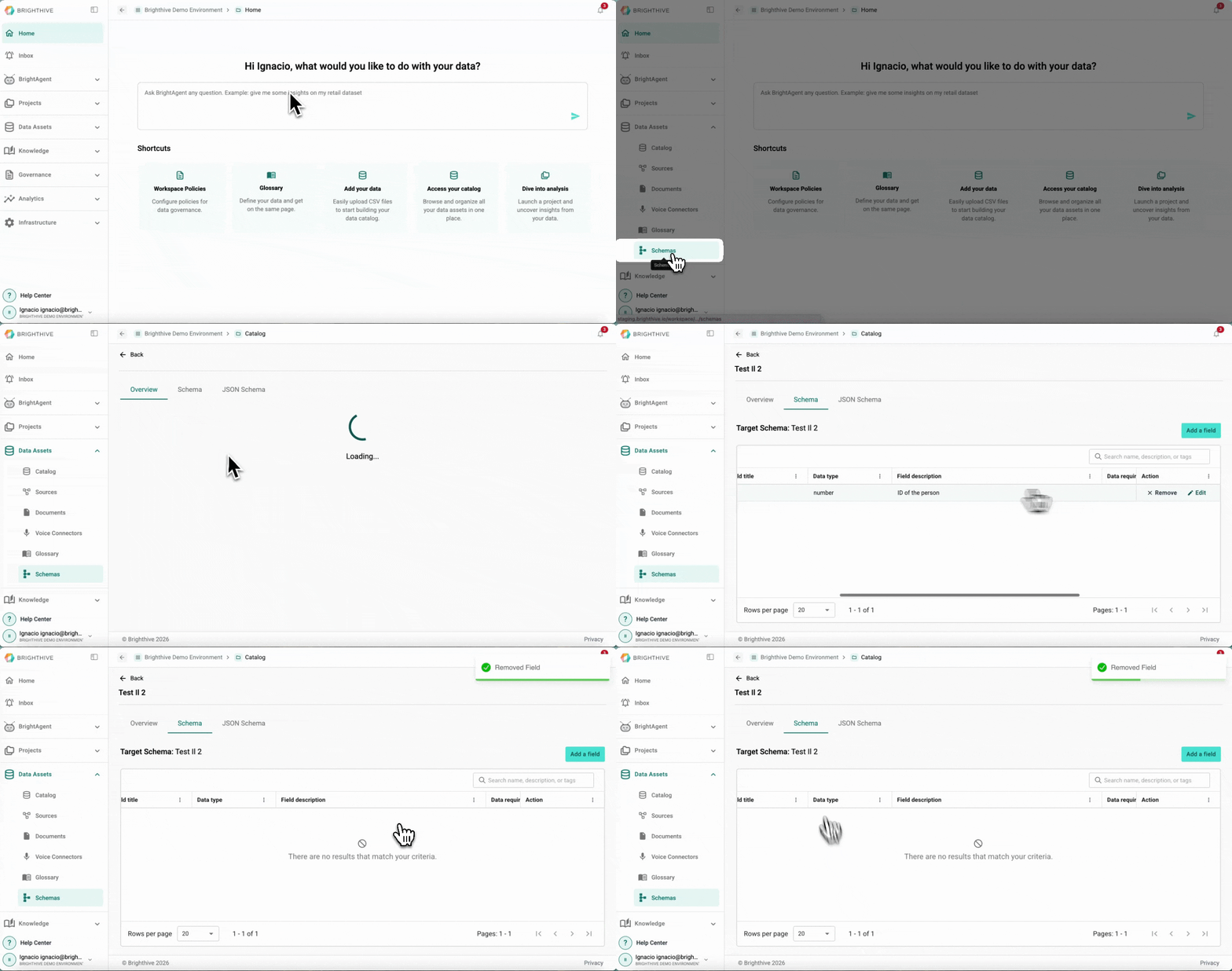
To remove a Field from an existing Schema in the Workspace:
Click "Data Assets"
Click "Schemas"
Select the name of the Schema you wish to edit
Go to the "Schema" Tab
Click "Remove" on the Action column of the Field you wish to remove
Confirm by clicking "Remove" on the popup window
Edit Schema's JSON:
To edit an existing Schema's JSON Schema:
Click "Data Assets"
Click "Schemas"
Select the name of the Schema you wish to edit
Go to the "JSON Schema" Tab
Modify what you wish to edit
Confirm by clicking "Save"